


Did you know that you can create your own covers for your iPhone or iPad? I've been working on a genealogy design that features either a family tree (my own of course!) or a collage of ancestor photos so that I can give my kids a custom cover for Christmas.
At Zazzle you can create a custom cover or buy one of their ready-made designs. Here's a few examples:
Disclosure: I was given a gift certificate to Zazzle.com for my time and participation

Updates about Olive Tree Genealogy website and other FREE genealogy records. Bringing you tutorials, genealogy book and app reviews, genealogy news, genealogy specials and more. Helping you find your family tree and ancestors.
Showing posts with label Ipad. Show all posts
Showing posts with label Ipad. Show all posts
November 16, 2012


July 27, 2011
PadPivot for iPad: A Review
 |
| PadPivot strapped to leg |
For a pledge of $25.00 I was a backer. My pledge would provide me with one PadPivot, a small carry pouch, a tether strap to hold PadPivot on my leg when in use and a dust cover to protect the Grip Plate. Oh, and the bonus was free shipping for USA and Canada. Canada is rarely included in special deals like that so I was pretty happy.
Pledging meant you were backing the development of the product with your money. So you waited. You waited until the protoype units were built, the final unit manufactured, tested and ready to ship. But I didn't mind as my credit card wasn't billed for the pledge for several months. Mind you there were setbacks and I had to wait another 4 months before my unit was shipped. But the two inventors of the PadPivot kept all backers up to date with constant emails and videos.
Yesterday I asked my husband to give the PadPivot a test run for me. He used it for several hours and pronounced it of good quality. He liked that it allowed him to have his hands free for texting on his iPhone while using his iPad! He noted that his arm gets tired after holding his iPad for a few hours so this was a great way to rest his arms.
 |
| Using iPad with PadPivot |
1. Swiveling the iPad to horizontal postion on PadPivot made him feel that it was going to fall off his leg (it didn't and he noted that you could just tighten the tether strap)
2. Because he had to keep getting up to attend to the dogs or answer the phone, he found it annoying to have to remove the PadPivot. That reinforced his decision that he would not use PadPivot for casual use but rather for extended periods on his iPad. But I pointed out that he could have set the landline phone on the table beside him.
Hubs thinks it would be a great thing to have if you were on a long airplane flight or in some other situation where you were going to use your iPad for an extended period of time. His final summation was that if you use your iPad a lot it is well worth the money.
March 14, 2011
So Many Apps, So Little Time!
Do you like to be notified via your iPhone or iPad the minute someone mentions you on Twitter, or sends you a message or comments on something you posted or liked on Facebook? Do you hate the normal push notifications on your iPhone or iPad?
If yes, then you might like this little (free) app I recently installed on my iPhone and iPad. It's called Boxcar and it's been around for awhile. I didn't hear about it until November when I read a review on TechCrunch
I'm always on the lookout for a good app. There are so many that sometimes I feel it's impossible to make a choice! So I like to find reviews by people or companies I trust and then try the app myself.
I downloaded Boxcar from the App Store last month and set it up for my Twitter and Facebook accounts. I really like it. I can't tell you it has a lot of specific genealogical uses but there are so many iPhone and iPad apps that I thought I'd share one I use and like. And no, I don't get paid anything to promote Boxcar, I just like it!
You can set Boxcar up to send you instant notifications on your Email accounts, RSS feeds (so you could get notified when your favourite genealogy blogs are updated), Foursquare and many other services.
There's also a paid upgrade to Boxcar which eliminates ads but they're very unobtrusive in a bar across the bottom of your device - so for me that's not a big deal.
If you try Boxcar and you think of a great way to use it to help with genealogy, please let me know by way of a comment here on my blog. I'm always looking for ways to incorporate my iPhone or iPad apps into my love of genealogy.
If yes, then you might like this little (free) app I recently installed on my iPhone and iPad. It's called Boxcar and it's been around for awhile. I didn't hear about it until November when I read a review on TechCrunch
I'm always on the lookout for a good app. There are so many that sometimes I feel it's impossible to make a choice! So I like to find reviews by people or companies I trust and then try the app myself.
I downloaded Boxcar from the App Store last month and set it up for my Twitter and Facebook accounts. I really like it. I can't tell you it has a lot of specific genealogical uses but there are so many iPhone and iPad apps that I thought I'd share one I use and like. And no, I don't get paid anything to promote Boxcar, I just like it!
You can set Boxcar up to send you instant notifications on your Email accounts, RSS feeds (so you could get notified when your favourite genealogy blogs are updated), Foursquare and many other services.
There's also a paid upgrade to Boxcar which eliminates ads but they're very unobtrusive in a bar across the bottom of your device - so for me that's not a big deal.
If you try Boxcar and you think of a great way to use it to help with genealogy, please let me know by way of a comment here on my blog. I'm always looking for ways to incorporate my iPhone or iPad apps into my love of genealogy.
February 2, 2011
Press Release: Ancestry, a New Genealogy App for the iPad
This Press Release arrived from Ancestry.com . Co-incidentally I had just downloaded the App in question from the App Store. I've only looked at it once but I liked it. It looked easy to use (a big plus for me!) and your list of Family Trees is displayed in an easy-to-spot format
However for me personally I can't see any use. I don't use Ancestry Family Trees except for compiling genealogy data that I want to publish using MyCanvas. So I don't think I would ever need to use my iPad for this purpose. However if you are a big user of Ancestry Family Trees, I'd say go for it!
SAN FRANCISCO, Jan. 31, 2011 /PRNewswire/ -- Ancestry.com, the world's largest online family history resource, today announced the availability of its new iPad app called Ancestry.
Built specifically to deliver a compelling tablet experience, the new Ancestry app brings to life on iPad's large screen multi-generational family trees complete with images of original family records and photos, making iPad a powerful tool for users to display and share their trees with family and friends in an interactive, highly visual way.
A dynamic, intuitive user interface and integration with Ancestry.com makes it simple for users to record memories, edit vital information, document life events and organize photos, and also for use in conducting field research, collection, and documentation.
Introducing Ancestry.com onto this compelling platform takes the website one step closer to its mission of helping everyone discover, preserve and share their family history.
"Since I already use my iPhone to document my life, it's natural to use it to document my family tree," said Ancestry.com user Aaron Vaughn of San Francisco. "Being able to research and upload photos and information on-the-fly makes updating my Ancestry.com account a seamless part of my life. Now, with the new iPad app, I've got all the added benefits the larger format affords."
Eric Shoup, Senior Vice President of Product for Ancestry.com, comments: "The new Ancestry iPad app makes it fun and easy to explore and share your family history research by allowing you and your family to tap and swipe your way through your family tree, old photos and records.
"Ancestry.com is committed to leveraging the latest technology to make what we offer on our website easily accessible, simple and enjoyable to use for family history novices and experts alike, at their desks or in the field."
The Ancestry.com app for iPad is now available for free at the iTunes App Store. A new version of the popular Ancestry.com iPhone app, which includes more features for navigating a family tree and viewing records already attached to a tree, is also available for free in the App Store.
To get started, just download the apps to your iPad, iPhone or iPod Touch(i), log in to your Ancestry.com account and choose a family tree.
. Co-incidentally I had just downloaded the App in question from the App Store. I've only looked at it once but I liked it. It looked easy to use (a big plus for me!) and your list of Family Trees is displayed in an easy-to-spot formatHowever for me personally I can't see any use. I don't use Ancestry Family Trees except for compiling genealogy data that I want to publish using MyCanvas. So I don't think I would ever need to use my iPad for this purpose. However if you are a big user of Ancestry Family Trees, I'd say go for it!
Ancestry.com's New iPad App Lets Consumers Update and Share Family Trees, Old Photos and Records in Stunning Detail
Ancestry.com App Exploits iPad Form Factor and Features to Create a Deeper, Brighter, Smarter User Experience
Ancestry.com App Exploits iPad Form Factor and Features to Create a Deeper, Brighter, Smarter User Experience
Built specifically to deliver a compelling tablet experience, the new Ancestry app brings to life on iPad's large screen multi-generational family trees complete with images of original family records and photos, making iPad a powerful tool for users to display and share their trees with family and friends in an interactive, highly visual way.
A dynamic, intuitive user interface and integration with Ancestry.com makes it simple for users to record memories, edit vital information, document life events and organize photos, and also for use in conducting field research, collection, and documentation.
Introducing Ancestry.com onto this compelling platform takes the website one step closer to its mission of helping everyone discover, preserve and share their family history.
"Since I already use my iPhone to document my life, it's natural to use it to document my family tree," said Ancestry.com user Aaron Vaughn of San Francisco. "Being able to research and upload photos and information on-the-fly makes updating my Ancestry.com account a seamless part of my life. Now, with the new iPad app, I've got all the added benefits the larger format affords."
Eric Shoup, Senior Vice President of Product for Ancestry.com, comments: "The new Ancestry iPad app makes it fun and easy to explore and share your family history research by allowing you and your family to tap and swipe your way through your family tree, old photos and records.
"Ancestry.com is committed to leveraging the latest technology to make what we offer on our website easily accessible, simple and enjoyable to use for family history novices and experts alike, at their desks or in the field."
The Ancestry.com app for iPad is now available for free at the iTunes App Store. A new version of the popular Ancestry.com iPhone app, which includes more features for navigating a family tree and viewing records already attached to a tree, is also available for free in the App Store.
To get started, just download the apps to your iPad, iPhone or iPod Touch(i), log in to your Ancestry.com account and choose a family tree.
January 17, 2011
Why Take an IPad instead of a Laptop on a Research Trip?
On January 10 I wrote a review of the wireless keyboard versus the keyboard dock for the iPad. Becky left a comment that has includes a great question which I want to address today.
I hope this helps explain why I am convinced that taking an iPad makes more sense (for me) than taking a laptop on a research trip. However since I bought a MacBook Air last week, I'm starting to rethink taking my iPad in favour of taking my new MacBook Air! I'll write about that once I make my final decision.
Here is Becky's comment:
I'm not as familiar with these new tools but I'm wondering what the advantage is for using your current set-up that you're written about here (even at RootsTech) over simply using a laptop on your lap on the sofa or at RootsTech? I don't have a netbook either, but that would be very portable. Can you explain the advantages of this iPad with the wireless keyboard setup? I'm just trying to learn.
Thanks for the good (and important) question Becky. My choices might not be the choices that are best for others but they work well for me. I have physical challenges and use a cane so anything extra that I need to carry has to be thought about carefully. But I think the awkardness of a laptop in terms of size and weight will hold true for most travellers.
 |
| My HP Laptop |
First - size. It does matter. My laptop is not a small notebook. It's big, heavy and awkward compared to my iPad. Resting it on my lap is uncomfortable and painful after an hour or more.
Laptop dimensions in inches: 12x11x2
iPad in case: 10x8x1/2Laptop weight: 5 1/2 lb.
iPad out of case weight: 1.6 lb. The case is not heavy so not much weight is added
 |
| My Laptop beside standard business envelope |
The laptop has to go in a padded laptop case, which then goes on a wheeled laptop cart. It is awkard to drag it through the airport or around in a research library. It is awkward to take off the cart, open the case, remove the laptop, open it and place it so the customs officials can inspect it in the airport. It is difficult to get it in the airplane overhead bins and try to get the cart into the bin too before the attendants snatch it away to put elsewhere.
 |
| Ipad in case (sorry it's dirty!) beside standard business envelope |
My iPad slips into my large purse. I can remove it easily, open the case and let customs officials inspect it quickly. I can carry it without difficulty even with my cane.
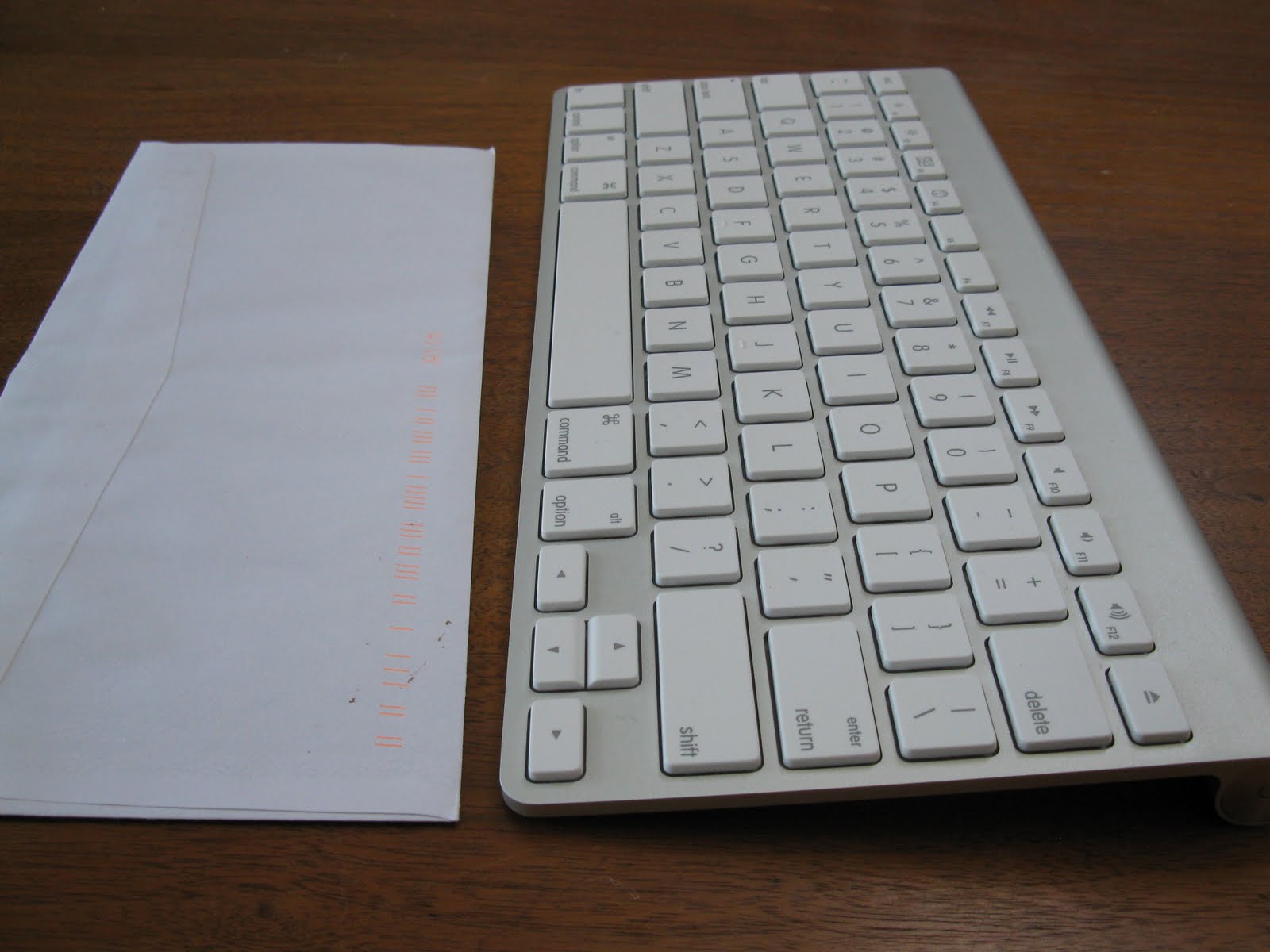 |
| Wireless Keyboard beside standard business envelope |
With the iPad I opted for an external keyboard which adds to size and weight. But the wireless keyboard is very small - 11x5x less than 1/4 of an inch! And it weighs about 10 oz. So tucking it into a cloth bag and then into my oversize purse is easy.
That means I don't have to listen to my husband grumble about having to push a laptop around as well as manage his own luggage, and no muttering under his breath as he tries to get the laptop into the overhead compartment of the plane while other passengers push by. I also forgot to mention that we have to make a minimum of one change, sometimes two, on our way by air from our home to Salt Lake City. So we double or triple the frustration of that cumbersome laptop.
I hope this helps explain why I am convinced that taking an iPad makes more sense (for me) than taking a laptop on a research trip. However since I bought a MacBook Air last week, I'm starting to rethink taking my iPad in favour of taking my new MacBook Air! I'll write about that once I make my final decision.
January 10, 2011
Review: Wireless Keyboard for iPad
For Christmas, I asked Santa for the iPad Keyboard Dock. I was finding the iPad internal keyboard is a bit awkward for extended typing. It was fine for brief emails or tweets, but not for writing blog posts or lengthy emails.
Seting up my new keyboard was super easy. It combines a dock for charging your iPad with a full-size keyboard, which includes special keys that activate iPad features. I just wanted to type with it so didn't play with the other features. After two weeks I realized it isn't what I want.
I can't hold my iPad on my lap when it is in the dock, as it is too awkward and the iPad is at the wrong angle for me to see the screen. Putting it on my coffee table worked well except I had to lean forward and down to type which proved very uncomfortable after a short time.
As well, I found it extremely tedious to remove my iPad cover every time I wanted to use the keyboard! The iPad only fits in the dock when it's "naked". So I had to take the cover off, put the cover back on, take it off, put it on.. you get the picture.
Sure I could put it at the dining room table but if I'm going to do that, i might as well use my main computer at my desk! I want to sit on the couch and work from there.
Also I soon realized that the keyboard was not very portable with it's big extension dock on the back. And I need to take it to Salt Lake City when I am at RootsTech, since I'm one of the officlal RootsTech Bloggers.
Originally I wanted the wireless keyboard for the iPad but I misunderstood the description on the Apple website! Under "Minimum System Requirements" it says it requires a "Bluetooth-enabled Mac computer with Mac OS X v10.5.8 or later" I thought that meant I had to have a stand alone Mac computer for the initial set up. Wrong.
The wireless keyboard works on Bluetooth technology and is as simple to pair with your iPad as it was to pair up my new Jambox with my iPad (more on that little delight in another blog post!)
I purchased the wireless keyboard and am loving it. It was easy to pair with my iPad by going into Settings, then General, then selecting Bluetooth. It automatically found the keyboard.
It is super easy to use. I can sit the keyboard on my lap and the iPad on my coffee table (propped up in its case) and type away.
I kind of wish I'd bought the folding wireless keyboard but if I tell hubby I am buying a third keyboard I think I'll hear about my bad decision-making for quite some time... and I do like this one.
It is going to work for portability and that's a huge plus!
I do need a sturdier dock of some kind to hold the iPad a bit steadier and at a slightly different angle, but I'll hunt around for something suitable. I would also like to have the iPad in landscape position instead of profile, but the angle is wrong when it's in my case and on the coffee table.
It is much easier to type on the external keyboard. I recommend it.
I'm giving the wireless keyboard 4 out of 5 Olive Tree Genealogy family trees, and the keyboard dock gets 3.
Seting up my new keyboard was super easy. It combines a dock for charging your iPad with a full-size keyboard, which includes special keys that activate iPad features. I just wanted to type with it so didn't play with the other features. After two weeks I realized it isn't what I want.
I can't hold my iPad on my lap when it is in the dock, as it is too awkward and the iPad is at the wrong angle for me to see the screen. Putting it on my coffee table worked well except I had to lean forward and down to type which proved very uncomfortable after a short time.
As well, I found it extremely tedious to remove my iPad cover every time I wanted to use the keyboard! The iPad only fits in the dock when it's "naked". So I had to take the cover off, put the cover back on, take it off, put it on.. you get the picture.
Sure I could put it at the dining room table but if I'm going to do that, i might as well use my main computer at my desk! I want to sit on the couch and work from there.
Also I soon realized that the keyboard was not very portable with it's big extension dock on the back. And I need to take it to Salt Lake City when I am at RootsTech, since I'm one of the officlal RootsTech Bloggers.
Originally I wanted the wireless keyboard for the iPad but I misunderstood the description on the Apple website! Under "Minimum System Requirements" it says it requires a "Bluetooth-enabled Mac computer with Mac OS X v10.5.8 or later" I thought that meant I had to have a stand alone Mac computer for the initial set up. Wrong.
The wireless keyboard works on Bluetooth technology and is as simple to pair with your iPad as it was to pair up my new Jambox with my iPad (more on that little delight in another blog post!)
I purchased the wireless keyboard and am loving it. It was easy to pair with my iPad by going into Settings, then General, then selecting Bluetooth. It automatically found the keyboard.
It is super easy to use. I can sit the keyboard on my lap and the iPad on my coffee table (propped up in its case) and type away.
I kind of wish I'd bought the folding wireless keyboard but if I tell hubby I am buying a third keyboard I think I'll hear about my bad decision-making for quite some time... and I do like this one.
It is going to work for portability and that's a huge plus!
I do need a sturdier dock of some kind to hold the iPad a bit steadier and at a slightly different angle, but I'll hunt around for something suitable. I would also like to have the iPad in landscape position instead of profile, but the angle is wrong when it's in my case and on the coffee table.
It is much easier to type on the external keyboard. I recommend it.
I'm giving the wireless keyboard 4 out of 5 Olive Tree Genealogy family trees, and the keyboard dock gets 3.
January 3, 2011
Splashtop Remote Desktop for iPad - a Winner!
Splashtop Remote Desktop for iPad is a terrific little program I just discovered. It brings your computer to your iPad, allowing you to view flash-enabled websites, watch videos and access your files from any of your favourite programs.
There are 2 versions in the App Store - one is free but it is limited to 5 minutes of use at a time. I purchased the full app which was on sale for 99cents. It was super easy to set up - I bought the App and after it installed, I opened it. Instructions were given to go to their website on my computer and download Splashtop Remote Installer (for Windows) A beta version is available for Mac.
After downloading the Installer, a small window pops up which gives you the few details you might need - Status, Settings, Security and Network. I say "might need" because when you go back to your iPad and open Splashtop, it will hunt for your computer(s) and you won't have to do a thing. If for some reason Splashtop doesn't find your computer(s) you can manually add one, using the IP address, port etc provided in the Splashtop Window open on your computer.
So I set it up. It only took a few minutes and as soon as I opened Splashtop on my iPad, it found my main computer and locked in. It automatically changes your computer viewing settings to match the native iPad settings (don't worry it switches your settings back when you close the program) and you are now operating your computer from your iPad.
I was able to open FTM (my favourite genealogy program) from my iPad. Normally I use GedView which is an iPad app for genealogy. I like GedView but sometimes I want my old familiar FTM in front of me!
I was able to search the FamilySearch beta site which on an iPad is glitchy - it freezes, is extremely slow and basically unusable. But I opened Firefox (also not available for iPad) and within seconds was searching for ancestors with no trouble.
Finally I could view photos on my favourite antique auction sites! Opening IE (remember I'm using the iPad but accessing my computer for this!) I could see the photos that are usually not accessible to me because they are flash-driven.
I was impressed with Splashtop. I was able to sit in our loft (which is our tv room) and use my main computer files and programs from my iPad. No more banishment to my computer office when I want to work on something at night while hubby is watching tv! Now I can join him.
The iPad keyboard is easily brought up by touching a small icon and there are even more keys than normal on it. I didn't play much with that but I will.
 The one drawback for me was that when you first open Splashtop on your iPad (when it's connected to your computer) a screen of "Hints" is displayed. This shows you finger controls to replace the familiar mouse. But the problem was I couldn't remember all of them and there is no way to bring them back except by closing the program and starting over. I could overcome this by printing the screen IF I had an air printer but I don't!
But this one small negative isn't severe and I'm sure in time I'll memorize the finger controls. There aren't that many.
If you have an iPad, I encourage you to give this little App a try.
There are 2 versions in the App Store - one is free but it is limited to 5 minutes of use at a time. I purchased the full app which was on sale for 99cents. It was super easy to set up - I bought the App and after it installed, I opened it. Instructions were given to go to their website on my computer and download Splashtop Remote Installer (for Windows) A beta version is available for Mac.
After downloading the Installer, a small window pops up which gives you the few details you might need - Status, Settings, Security and Network. I say "might need" because when you go back to your iPad and open Splashtop, it will hunt for your computer(s) and you won't have to do a thing. If for some reason Splashtop doesn't find your computer(s) you can manually add one, using the IP address, port etc provided in the Splashtop Window open on your computer.
 |
| My Computer controlled from my iPad |
I was able to open FTM (my favourite genealogy program) from my iPad. Normally I use GedView which is an iPad app for genealogy. I like GedView but sometimes I want my old familiar FTM in front of me!
I was able to search the FamilySearch beta site which on an iPad is glitchy - it freezes, is extremely slow and basically unusable. But I opened Firefox (also not available for iPad) and within seconds was searching for ancestors with no trouble.
Finally I could view photos on my favourite antique auction sites! Opening IE (remember I'm using the iPad but accessing my computer for this!) I could see the photos that are usually not accessible to me because they are flash-driven.
I was impressed with Splashtop. I was able to sit in our loft (which is our tv room) and use my main computer files and programs from my iPad. No more banishment to my computer office when I want to work on something at night while hubby is watching tv! Now I can join him.
The iPad keyboard is easily brought up by touching a small icon and there are even more keys than normal on it. I didn't play much with that but I will.

But this one small negative isn't severe and I'm sure in time I'll memorize the finger controls. There aren't that many.
If you have an iPad, I encourage you to give this little App a try.
December 23, 2010
I See a Dragon in My Future!
Dragon Dictation is a free voice recognition application for the iPad (also for the Iphone or Ipod Touch). I'm using it to write this blog post. I'm not typing this, Dragon is typing it for me. How cool is that? It's very easy to use and within seconds of downloading it on to my Ipad I was dictating an email.
I'm thinking about different genealogical uses for Dragon. I'm going to be attending the RootsTech conference in February (I'm an official Rootstech Blogger) and it seems to me that I can continue to write my daily blog posts using Dragon and that it will be much easier and faster for me then using my iPad keyboard.
Dragon allows me to speak punctuation commands such as "period" or "new paragraph". This lets me format my writing exactly as I want it. That's the part I'm having trouble getting used to but I assume it gets easier the more you use Dragon.
By dictating this blog post into Notes in Dragon I am able to pause and then resume where I left off. When I am finished my blog post I plan to correct any typos or errors and e-mail the post to myself. I could e-mail it directly to blogger to be automatically published on my Olive Tree Genealogy blog but this time I prefer to e-mail it to myself and copy and paste it into Blogger.
I experimented with Dragon last night by sending tweets to my Twitter but it seemed a little strange to be speaking to my Ipad in front of my husband!
And so this ends my first blog post typed entirely by Dragon as I spoke into the microphone on my IPad. I'm liking it and believe I can find many other uses for it in my Genealogy world.
I'm thinking about different genealogical uses for Dragon. I'm going to be attending the RootsTech conference in February (I'm an official Rootstech Blogger) and it seems to me that I can continue to write my daily blog posts using Dragon and that it will be much easier and faster for me then using my iPad keyboard.
Dragon allows me to speak punctuation commands such as "period" or "new paragraph". This lets me format my writing exactly as I want it. That's the part I'm having trouble getting used to but I assume it gets easier the more you use Dragon.
By dictating this blog post into Notes in Dragon I am able to pause and then resume where I left off. When I am finished my blog post I plan to correct any typos or errors and e-mail the post to myself. I could e-mail it directly to blogger to be automatically published on my Olive Tree Genealogy blog but this time I prefer to e-mail it to myself and copy and paste it into Blogger.
I experimented with Dragon last night by sending tweets to my Twitter but it seemed a little strange to be speaking to my Ipad in front of my husband!
And so this ends my first blog post typed entirely by Dragon as I spoke into the microphone on my IPad. I'm liking it and believe I can find many other uses for it in my Genealogy world.
July 17, 2010
REVIEW: GedView for the Ipad
GedView is one of several genealogy programs available for the Ipad. I'm going to be reviewing most, if not all, of these programs.
I'm starting with GedView. GedView is designed to allow you easy access to your genealogy files when you're away from your computer. You can consult your files in a library, a cemetery, a friend's house, a coffee shop - you get the idea!
The layout of GedView is very nice. A User's Manual is included when you download the App, and it's very easy to follow.
When you open GedView the first time you'll see the ABOUT screen and a clickable button labelled SELECT/IMPORT GEDCOM FILE. A simple tap of the button takes you to the screen for selecting and importing a GEDCOM.
You can either Download a GEDCOM from a website or choose the Upload to Device option.
Each option is very clearly explained and easy to follow. I chose to Upload to Device because it allowed me to turn ON the switch for the Server and transfer my GEDCOM directly to my Ipad over my WiFi network.
As soon as I turned the Server ON, I saw two new lines of text below the switch. These were the two addresses for me to upload my GEDCOM. The first was the name of my Ipad (Administrator's Ipad). The second was a numbered URL in the form http://xxx.xxx.x.x:xxxx
Next step was to open my browser on my computer (not my Ipad) and go to the second URL given in my Ipad.
Once there I chose the UPLOAD FILE button and selected my GEDCOM from my computer's FTW directory. Bingo, it was done. When I reopened GedView my entire genealogy file was there at my fingertips.
There is a third option and that is to use the File-Sharing capability for Ipad using Itunes. This option is also fully explained in the Help File on GedView. You can even email yourself a GEDCOM as an attachment, then open it in your Ipad email you've set up and it will view in GedView.
So far I like it. I'll play around with it some more over the next few days and give an overview of its functions here in this blog.
I'm starting with GedView. GedView is designed to allow you easy access to your genealogy files when you're away from your computer. You can consult your files in a library, a cemetery, a friend's house, a coffee shop - you get the idea!
The layout of GedView is very nice. A User's Manual is included when you download the App, and it's very easy to follow.
When you open GedView the first time you'll see the ABOUT screen and a clickable button labelled SELECT/IMPORT GEDCOM FILE. A simple tap of the button takes you to the screen for selecting and importing a GEDCOM.
You can either Download a GEDCOM from a website or choose the Upload to Device option.
Each option is very clearly explained and easy to follow. I chose to Upload to Device because it allowed me to turn ON the switch for the Server and transfer my GEDCOM directly to my Ipad over my WiFi network.
As soon as I turned the Server ON, I saw two new lines of text below the switch. These were the two addresses for me to upload my GEDCOM. The first was the name of my Ipad (Administrator's Ipad). The second was a numbered URL in the form http://xxx.xxx.x.x:xxxx
Next step was to open my browser on my computer (not my Ipad) and go to the second URL given in my Ipad.
Once there I chose the UPLOAD FILE button and selected my GEDCOM from my computer's FTW directory. Bingo, it was done. When I reopened GedView my entire genealogy file was there at my fingertips.
There is a third option and that is to use the File-Sharing capability for Ipad using Itunes. This option is also fully explained in the Help File on GedView. You can even email yourself a GEDCOM as an attachment, then open it in your Ipad email you've set up and it will view in GedView.
So far I like it. I'll play around with it some more over the next few days and give an overview of its functions here in this blog.
Subscribe to:
Posts (Atom)